
Understand · Free and premium
Connect Apple Health or Health Connect
Grant only the health permissions you want and understand how imported activity affects CalorieGram.
About 4 minutes4 stepsReviewed for v1.11.0
Before you start
Where to find it
Profile → Health Metrics → Activity settings
Have ready
- Apple Health on iOS or Health Connect on Android
Step by step
Walkthrough
- 01
Open activity settings
From Health Metrics, find the device-health or activity connection controls.
- 02
Choose data types
Request access, then allow only the supported categories you want CalorieGram to read.
- 03
Confirm imported context
Return to CalorieGram and review activity or health context after the platform finishes syncing.
- 04
Change access at any time
Use the device health app or system privacy settings to add or remove data permissions.
What you will see
These screens show the current app layout. Platform-specific labels and controls are noted below.
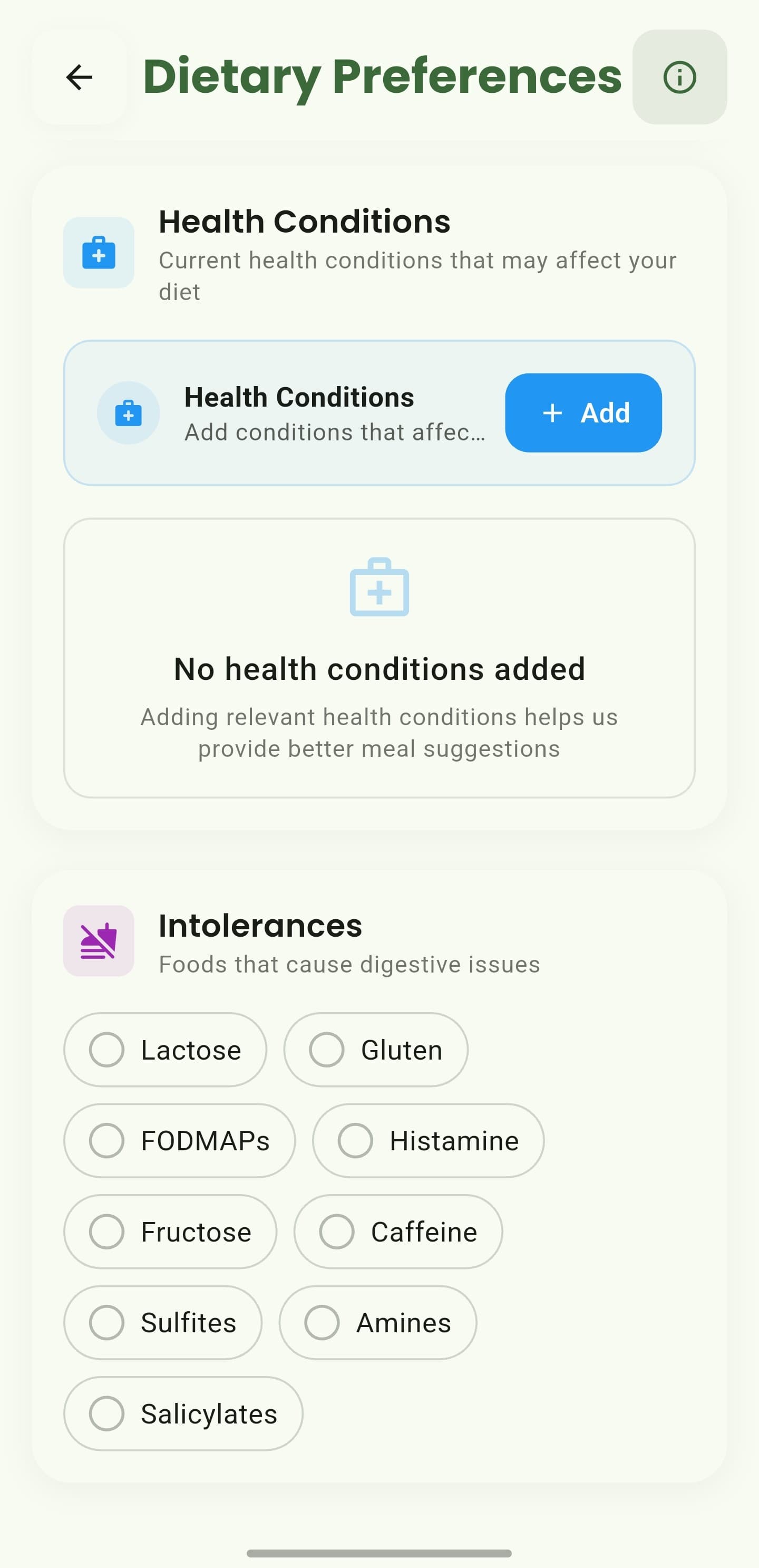
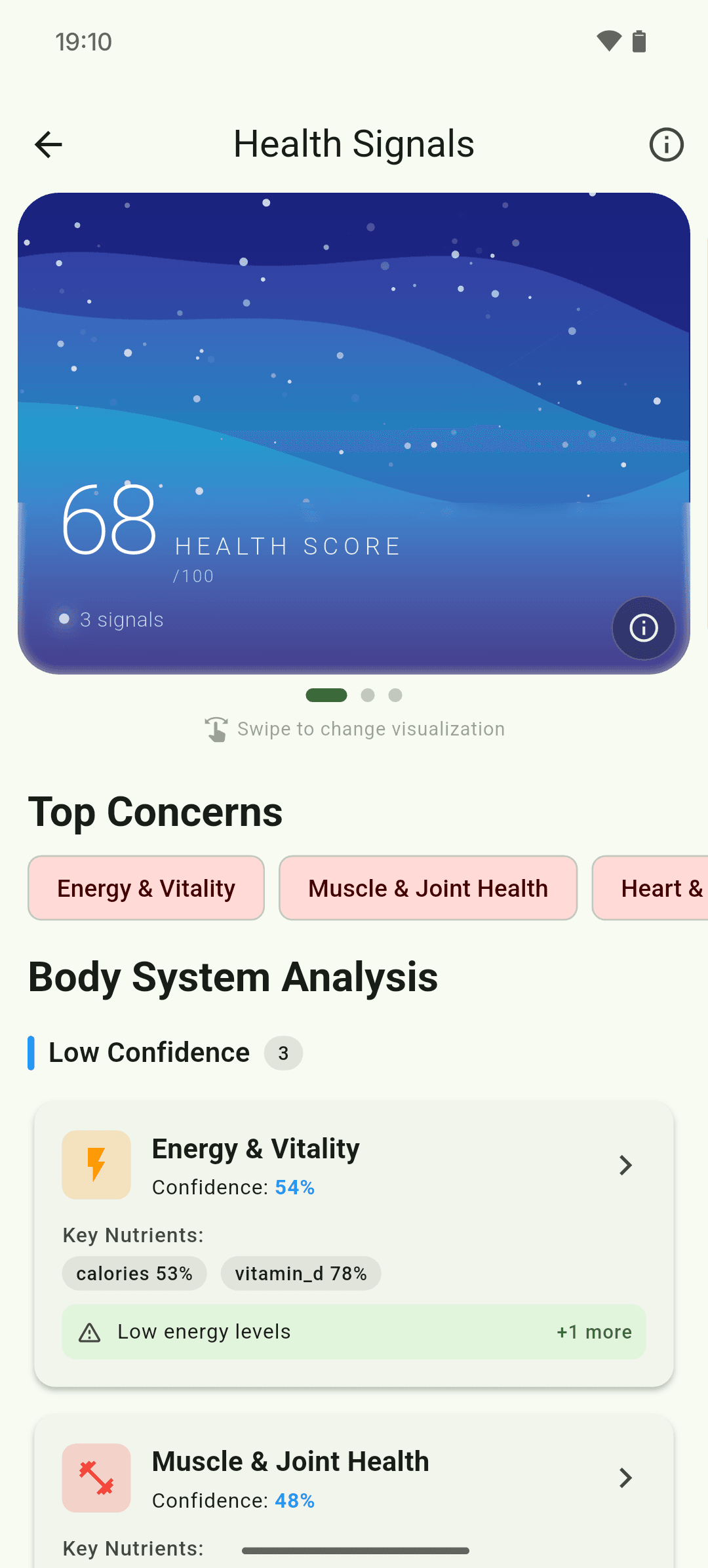
iOS and Android
iOS
- Permissions are managed in Apple Health and iOS privacy settings.
Android
- Permissions are managed through Health Connect and Android privacy settings.
If something looks wrong
- Another app must write a supported data type before CalorieGram can read it.
- Sync can take time; reopen the screen after the health platform updates.
Keep learning
Still need a hand?
Tell us which step you reached and what you expected to happen. We will help you find the next move.
Contact support