
Understand · Free and premium
Follow analytics, weight, streaks, and achievements
Change time ranges, compare trends, update weight, and understand progress milestones.
About 4 minutes4 stepsReviewed for v1.11.0
Before you start
Where to find it
Profile → Analytics, Weight, or Achievements
Have ready
- Several days of logged data for meaningful trends
Step by step
Walkthrough
- 01
Open Analytics
Choose a time range and review nutrition, weight, and other available trend views.
- 02
Compare like with like
Keep the date range and units consistent when comparing changes.
- 03
Update weight deliberately
Add a current measurement from the weight view and confirm the date and unit.
- 04
Review milestones
Open streaks and achievements to see what was earned and which activity produced it.
What you will see
These screens show the current app layout. Platform-specific labels and controls are noted below.
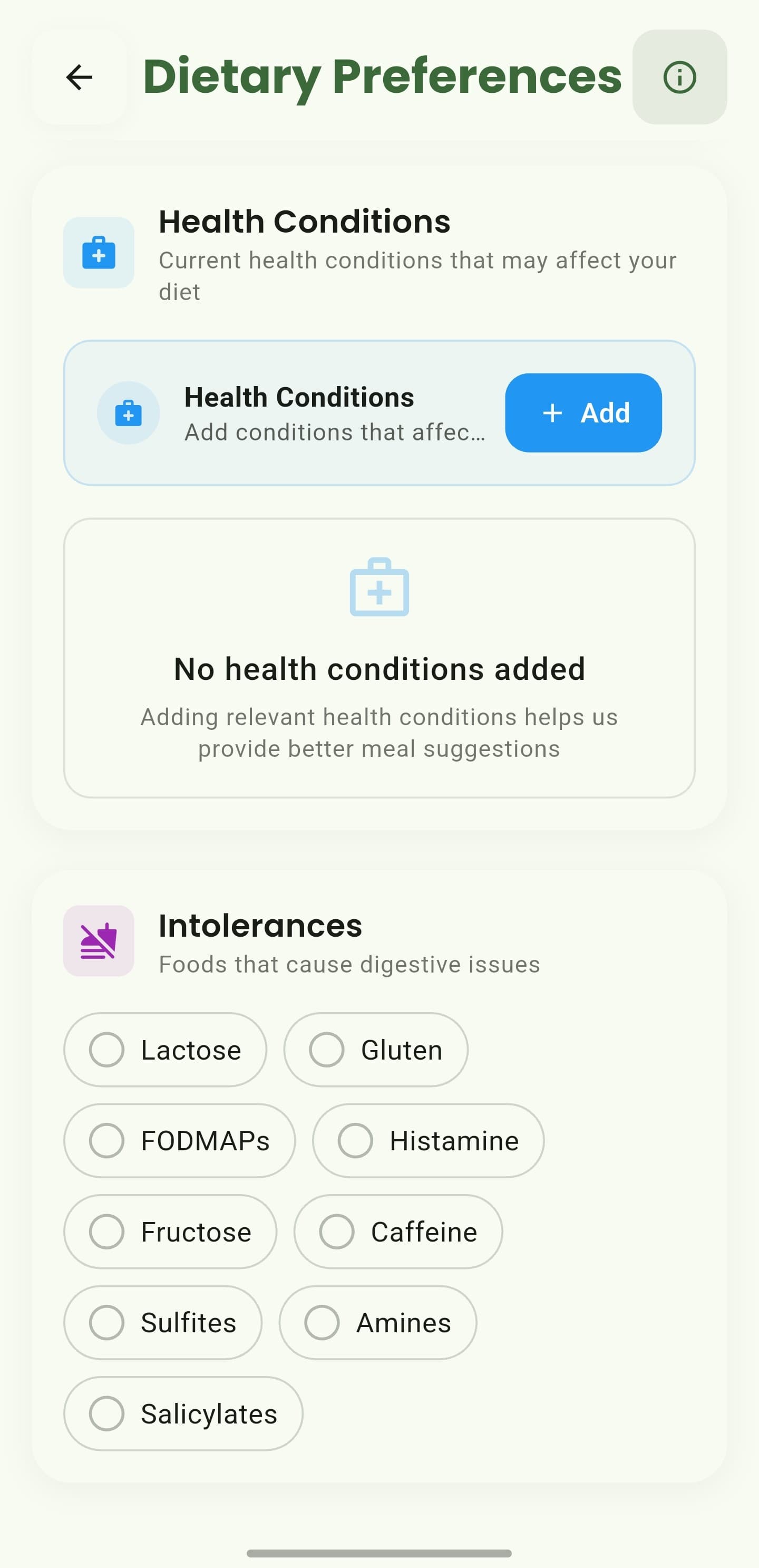
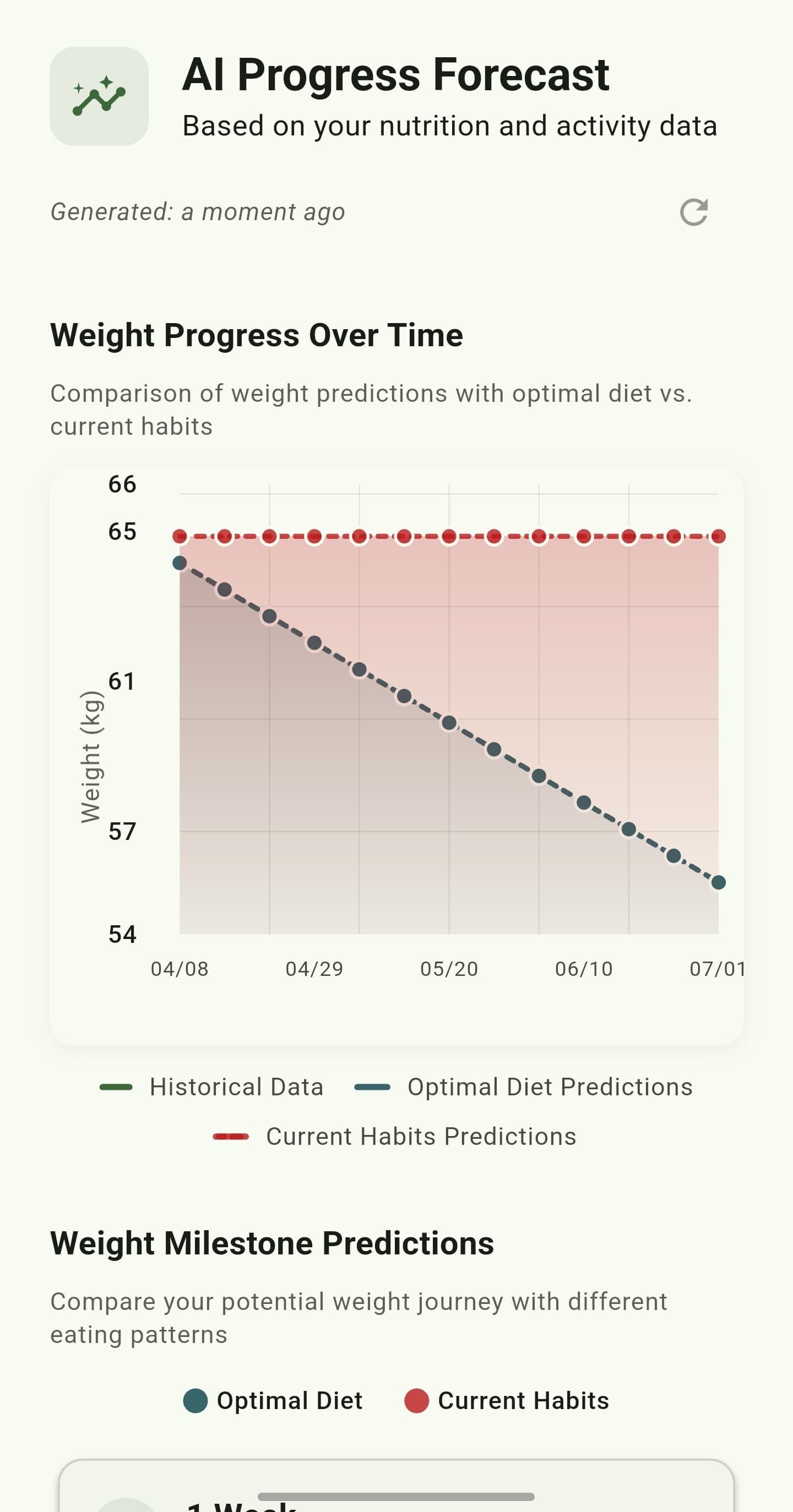
iOS and Android
iOS
- Trend interpretation depends on consistent logging and measurement conditions.
Android
- Trend interpretation depends on consistent logging and measurement conditions.
If something looks wrong
- Short date ranges can hide gradual changes.
- A streak reflects logging consistency, not the medical quality of a diet.
Keep learning
Still need a hand?
Tell us which step you reached and what you expected to happen. We will help you find the next move.
Contact support