
Manage · Free and premium
Manage notifications and reminders
Choose useful food, water, fasting, progress, and other supported reminders without losing system control.
About 3 minutes4 stepsReviewed for v1.11.0
Before you start
Where to find it
Profile → Settings → Notification Settings
Have ready
- System notification permission
Step by step
Walkthrough
- 01
Open Notification Settings
Use CalorieGram Settings to review the reminder categories currently available to your account.
- 02
Choose categories and timing
Enable only useful reminders and set supported times or frequencies.
- 03
Confirm system permission
If prompted, allow notifications in the operating system. CalorieGram cannot override a system-level denial.
- 04
Review after a day
Return to settings and reduce reminders that arrive at unhelpful times.
What you will see
These screens show the current app layout. Platform-specific labels and controls are noted below.
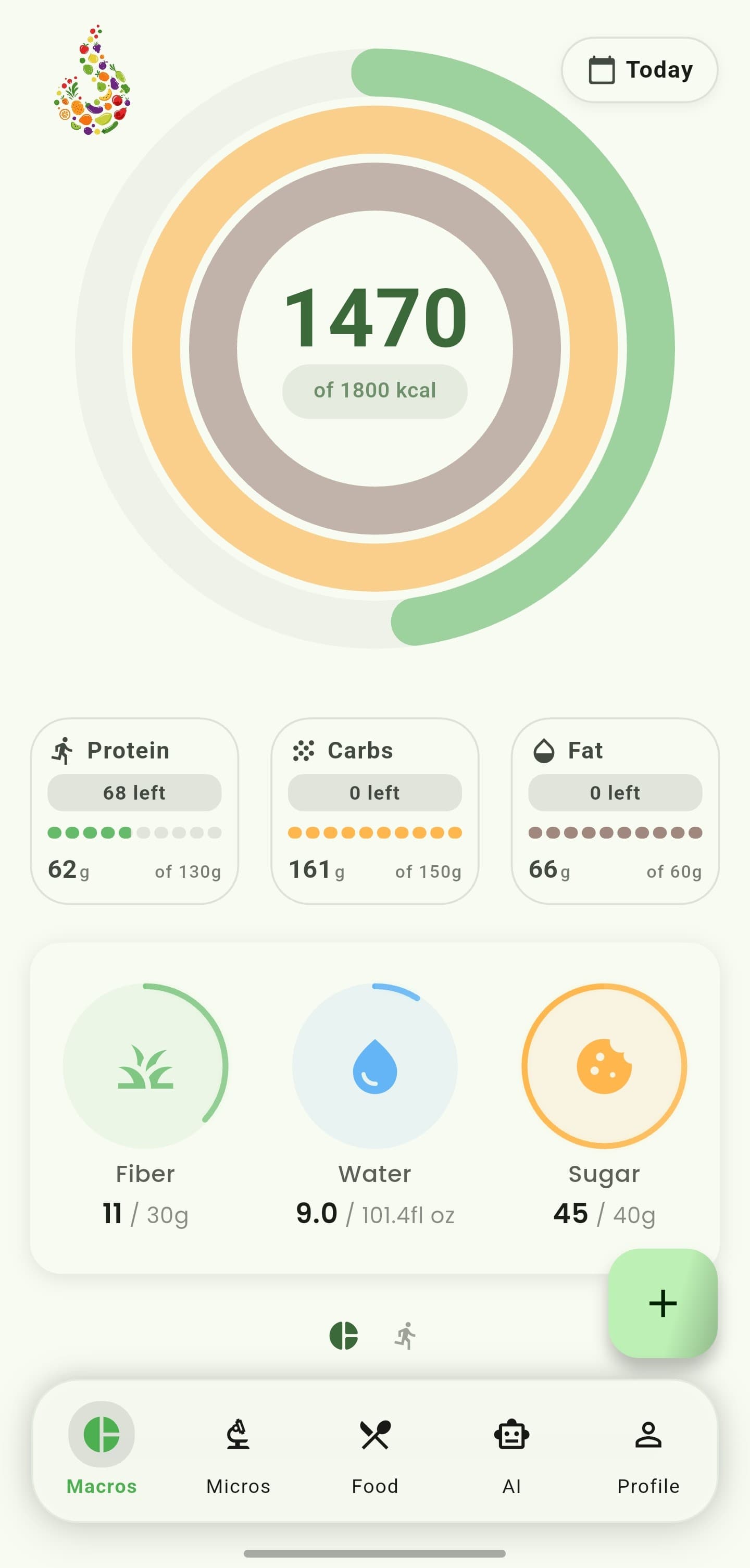
iOS and Android
iOS
- Focus modes and Notification Summary can delay alerts.
Android
- Battery optimization and notification channels can affect delivery.
If something looks wrong
- Check both CalorieGram and system notification settings.
- Make sure device time zone and scheduled reminder times are correct.
Keep learning
Still need a hand?
Tell us which step you reached and what you expected to happen. We will help you find the next move.
Contact support