
Move · Free and premium
Use the fasting tracker
Choose a flexible schedule, start and stop a fast, and understand how it affects meal planning.
About 3 minutes4 stepsReviewed for v1.11.0
Before you start
Where to find it
AI → Fasting Tracker, or Profile → Settings → Fasting
Have ready
- A schedule appropriate for you
Step by step
Walkthrough
- 01
Open fasting setup
Choose Fasting Tracker and select a schedule or eating window that fits your routine.
- 02
Start at the correct time
Begin the timer when the fast actually starts rather than backdating by guesswork.
- 03
Monitor and finish
Review elapsed time and end the fast when you resume eating.
- 04
Adjust or disable
Update the schedule from fasting settings, or turn the feature off when it is not useful.
What you will see
These screens show the current app layout. Platform-specific labels and controls are noted below.
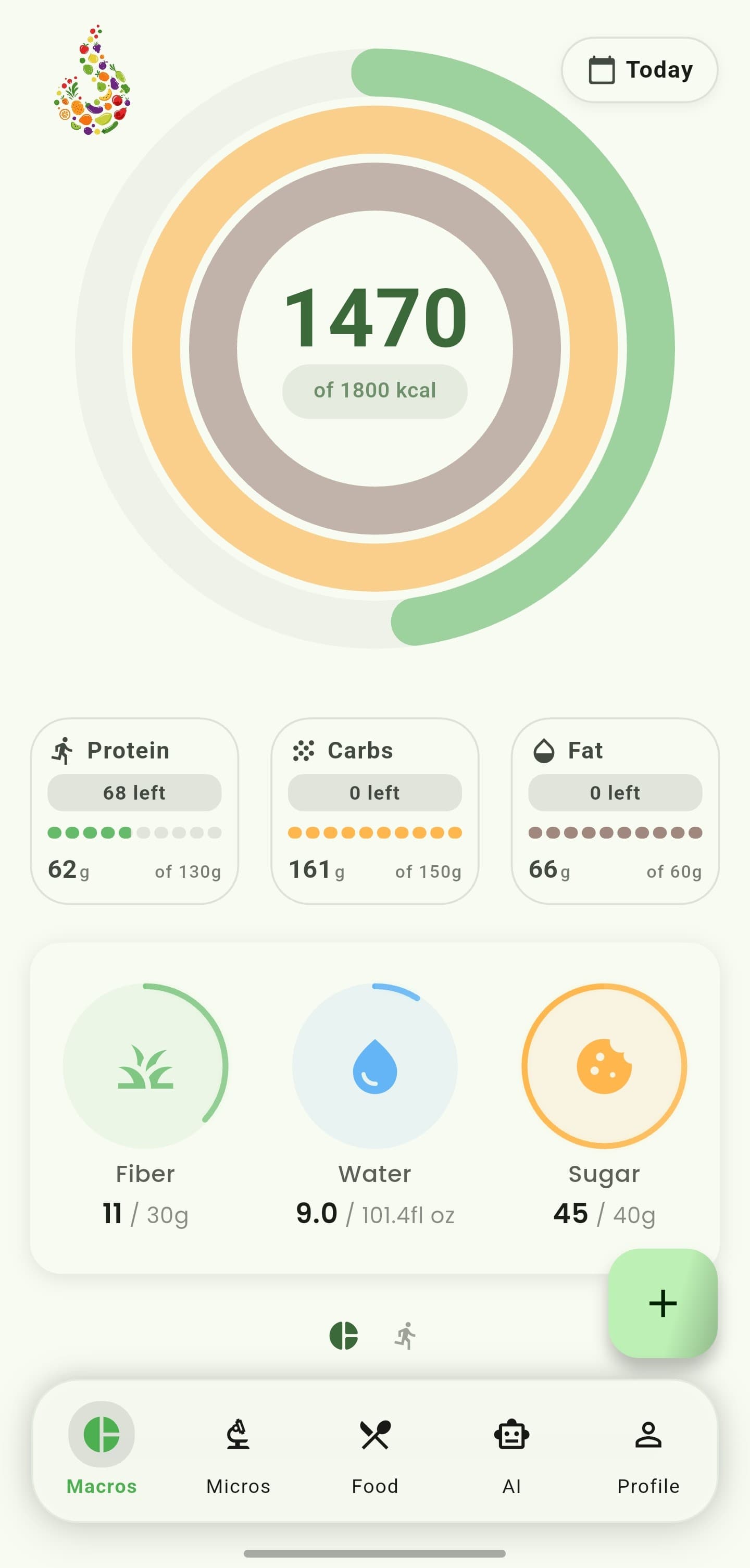
iOS and Android
iOS
- Fasting is optional and may not be appropriate for everyone.
Android
- Fasting is optional and may not be appropriate for everyone.
If something looks wrong
- Check notification permission if start or end reminders are missing.
- Stop and seek qualified guidance if fasting causes concerning symptoms or conflicts with medical needs.
Keep learning
Still need a hand?
Tell us which step you reached and what you expected to happen. We will help you find the next move.
Contact support