
Plan · Free and premium
Build and adjust a weekly meal plan
Set planning preferences, generate a week, replace meals, and use the resulting shopping needs.
About 6 minutes4 stepsReviewed for v1.11.0
Before you start
Where to find it
AI → Meal Planner
Have ready
- Current goals, dietary restrictions, and cuisine preferences
Step by step
Walkthrough
- 01
Set plan preferences
Choose the days, meal types, serving needs, and the profile preferences the plan should respect.
- 02
Generate the week
Start generation and wait for the complete plan before reviewing individual meals.
- 03
Review and replace
Check ingredients and nutrition. Use alternatives for meals that are unavailable or do not fit.
- 04
Confirm the plan
Save the reviewed week and use its shopping information to prepare ingredients.
What you will see
These screens show the current app layout. Platform-specific labels and controls are noted below.
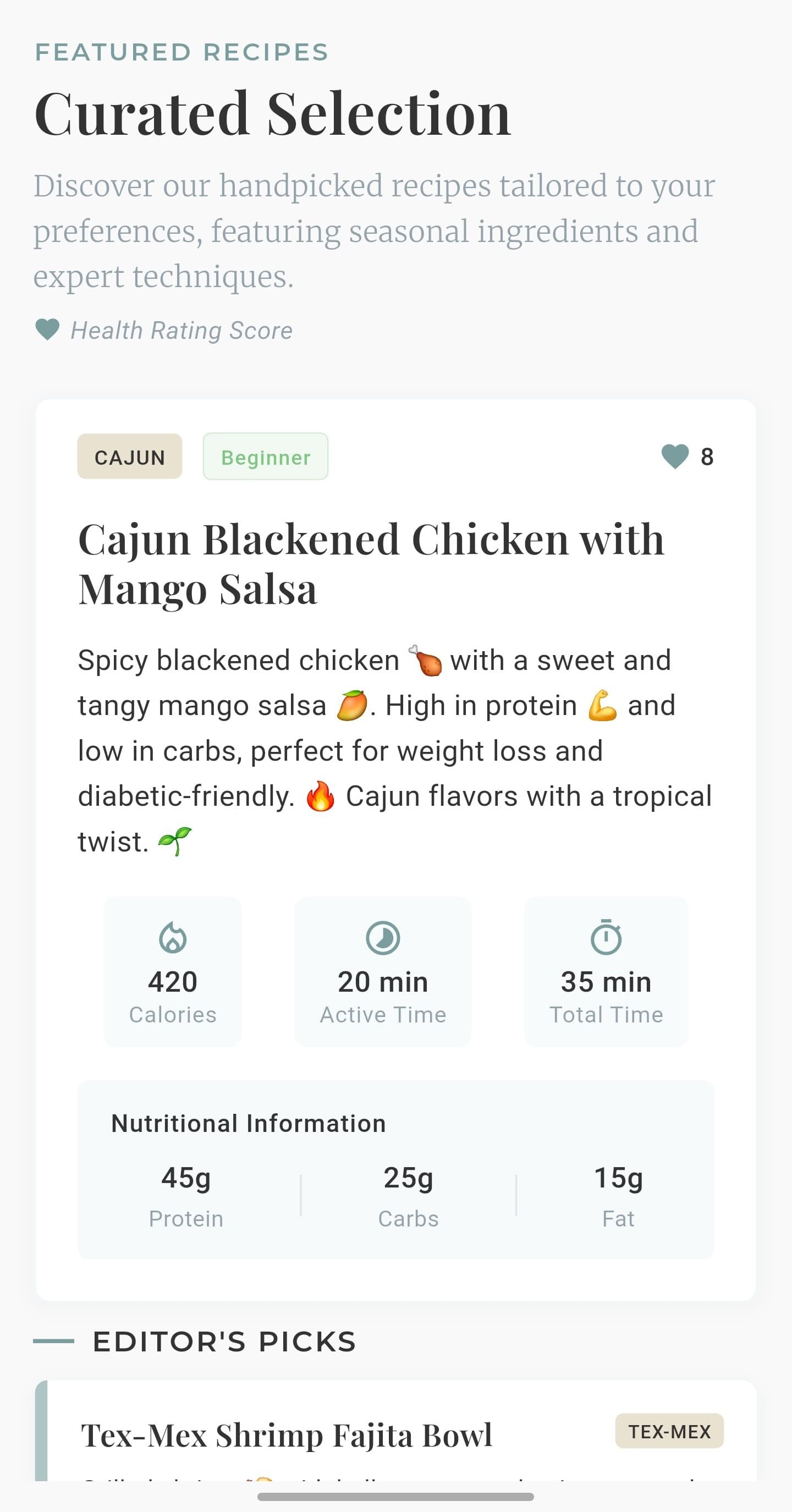
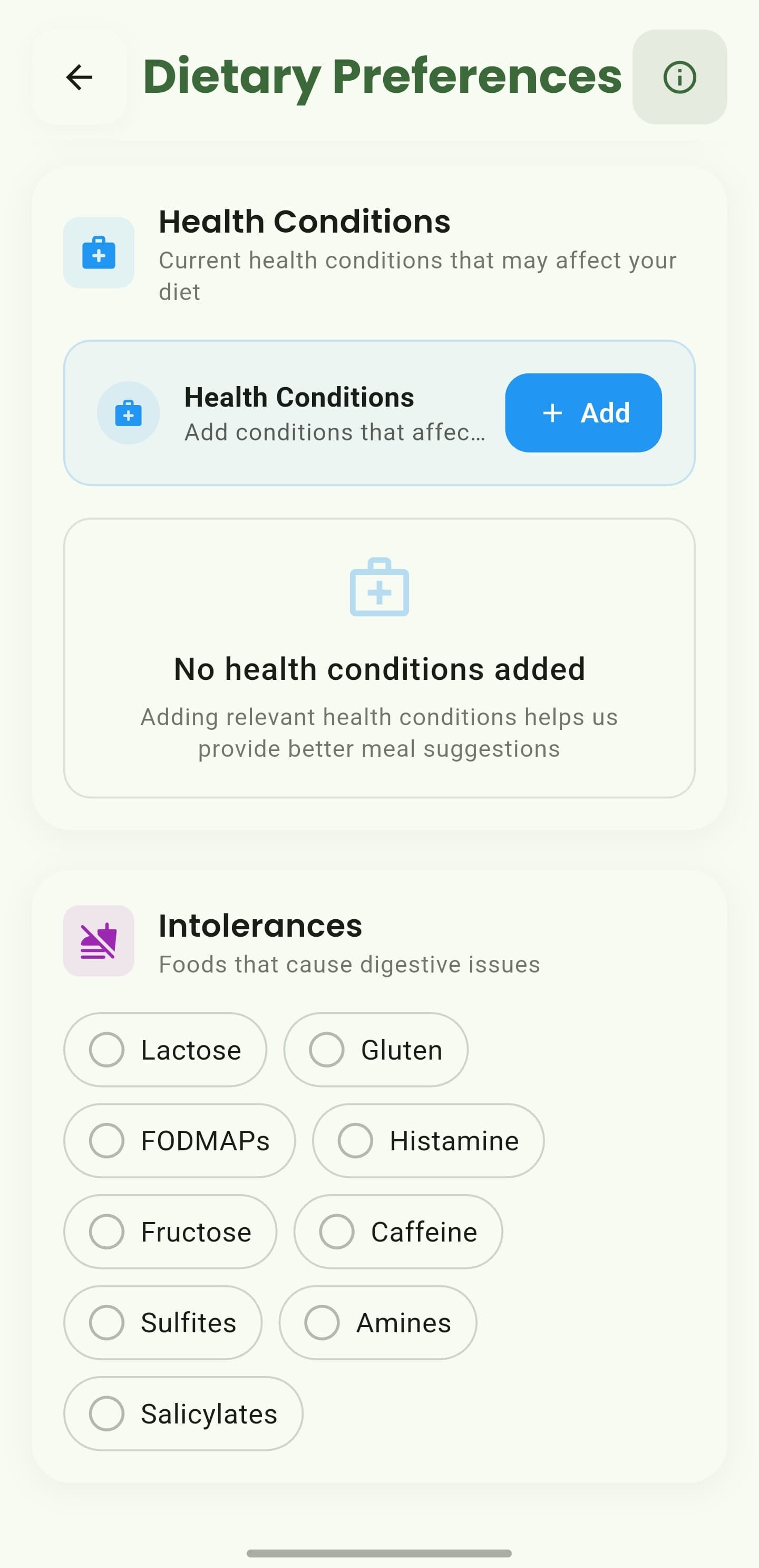
iOS and Android
iOS
- Availability and generated choices depend on the preferences and information supplied.
Android
- Availability and generated choices depend on the preferences and information supplied.
If something looks wrong
- Broaden optional preferences if no complete plan can be produced.
- Do not remove an allergy or medical restriction just to increase results.
Keep learning
Still need a hand?
Tell us which step you reached and what you expected to happen. We will help you find the next move.
Contact support