
Log · Free and premium
Scan a barcode or nutrition label
Look up packaged food quickly and use the physical label as the final reference.
About 2 minutes4 stepsReviewed for v1.11.0
Before you start
Where to find it
Food → Add → Camera → Barcode or Label
Have ready
- Camera permission
- A readable barcode or label
Step by step
Walkthrough
- 01
Choose the correct camera mode
Use Barcode for the product code. Open the advanced mode sheet and choose Label for nutrition facts or ingredients.
- 02
Hold the package steady
Fill the guide with the barcode or label, avoid glare, and keep all important text sharp.
- 03
Compare the result
Match product name, serving size, calories, and nutrients to the package in your hand.
- 04
Set quantity and save
Enter how much you ate, then save. Use scanned-product history to find a product again later.
What you will see
These screens show the current app layout. Platform-specific labels and controls are noted below.
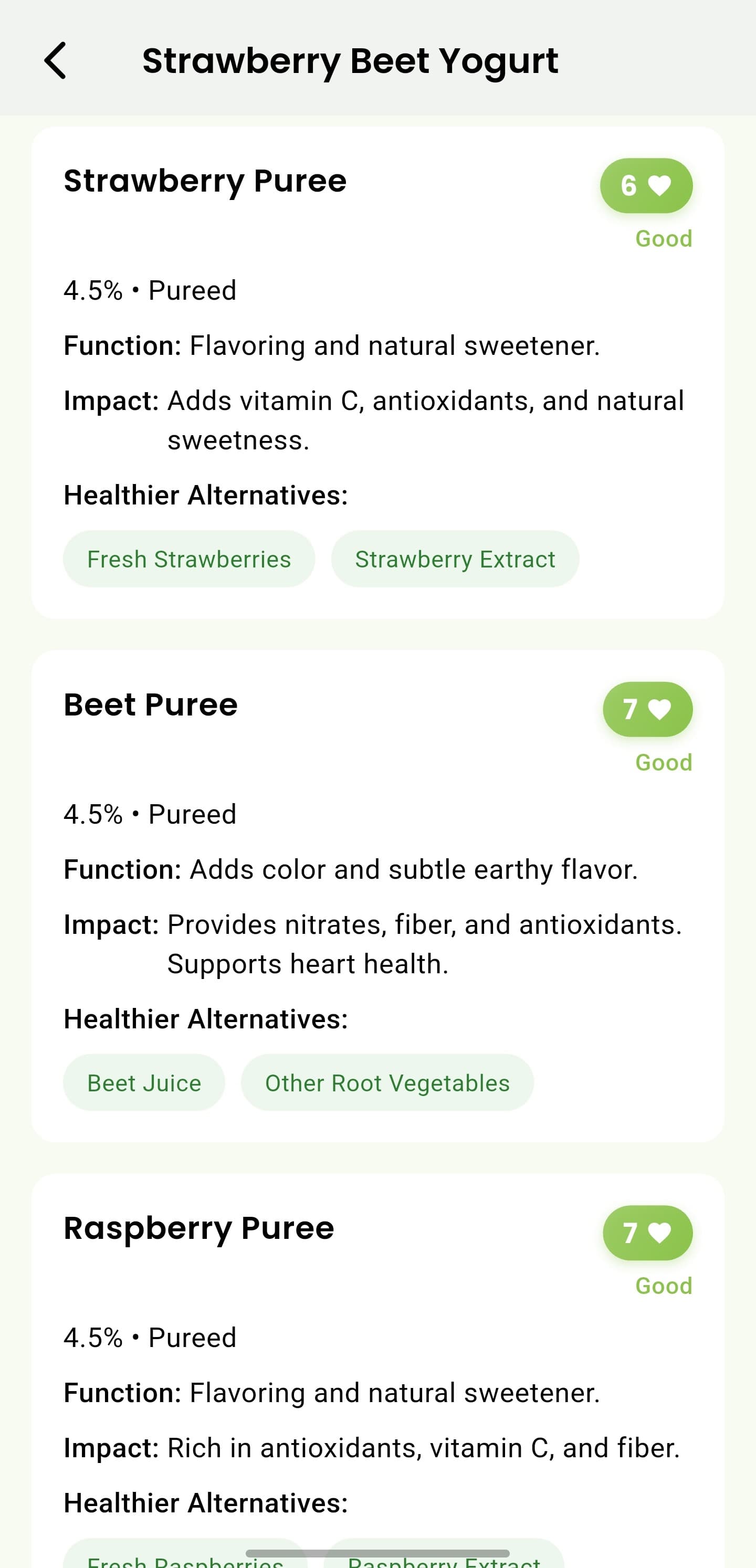
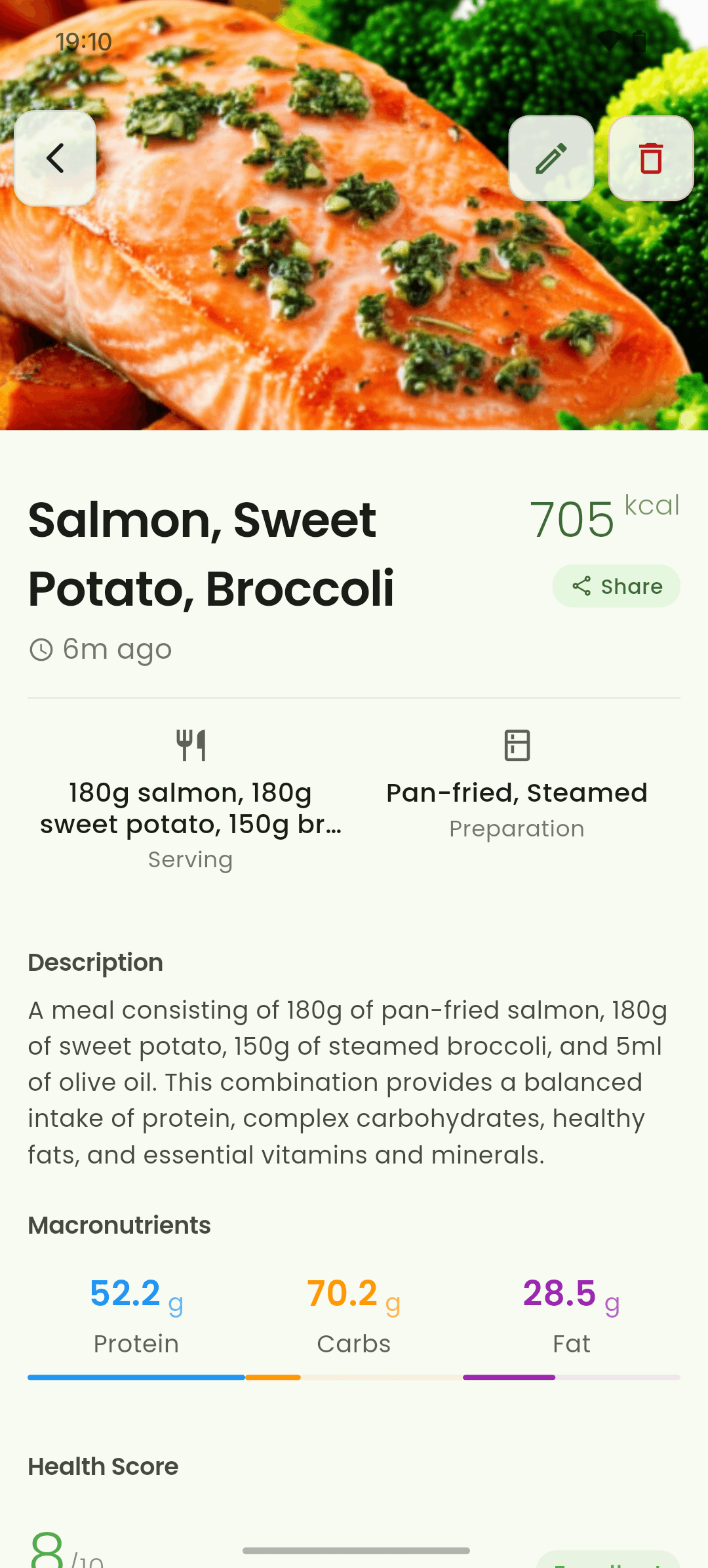
iOS and Android
iOS
- Camera permission can be re-enabled from the device Settings app.
Android
- Camera permission can be re-enabled from the device Settings app.
If something looks wrong
- Flatten the label and remove glare before trying again.
- Product databases can be incomplete or outdated; the package label wins.
Keep learning
Still need a hand?
Tell us which step you reached and what you expected to happen. We will help you find the next move.
Contact support