
Log · Free and premium
Review, edit, and remove a food entry
Correct estimates and servings so the diary represents what you actually consumed.
About 2 minutes4 stepsReviewed for v1.11.0
Before you start
Where to find it
Food → Tap an existing diary entry
Have ready
- At least one food entry
Step by step
Walkthrough
- 01
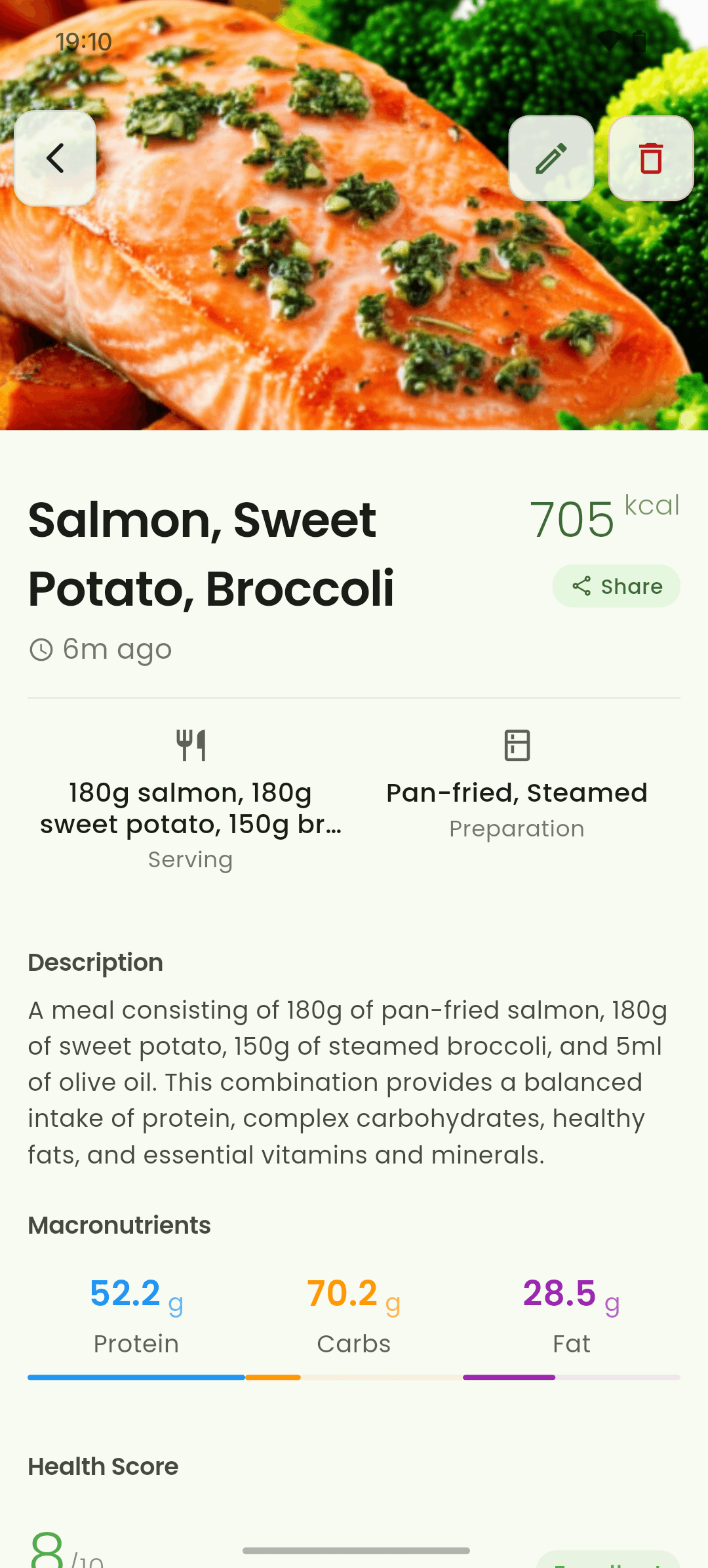
Open the entry
Tap a food in the diary to review its serving, ingredients, preparation, calories, macros, and micronutrients.
- 02
Correct the serving or food
Edit the quantity, unit, ingredients, or other available fields to match what you ate.
- 03
Save the changes
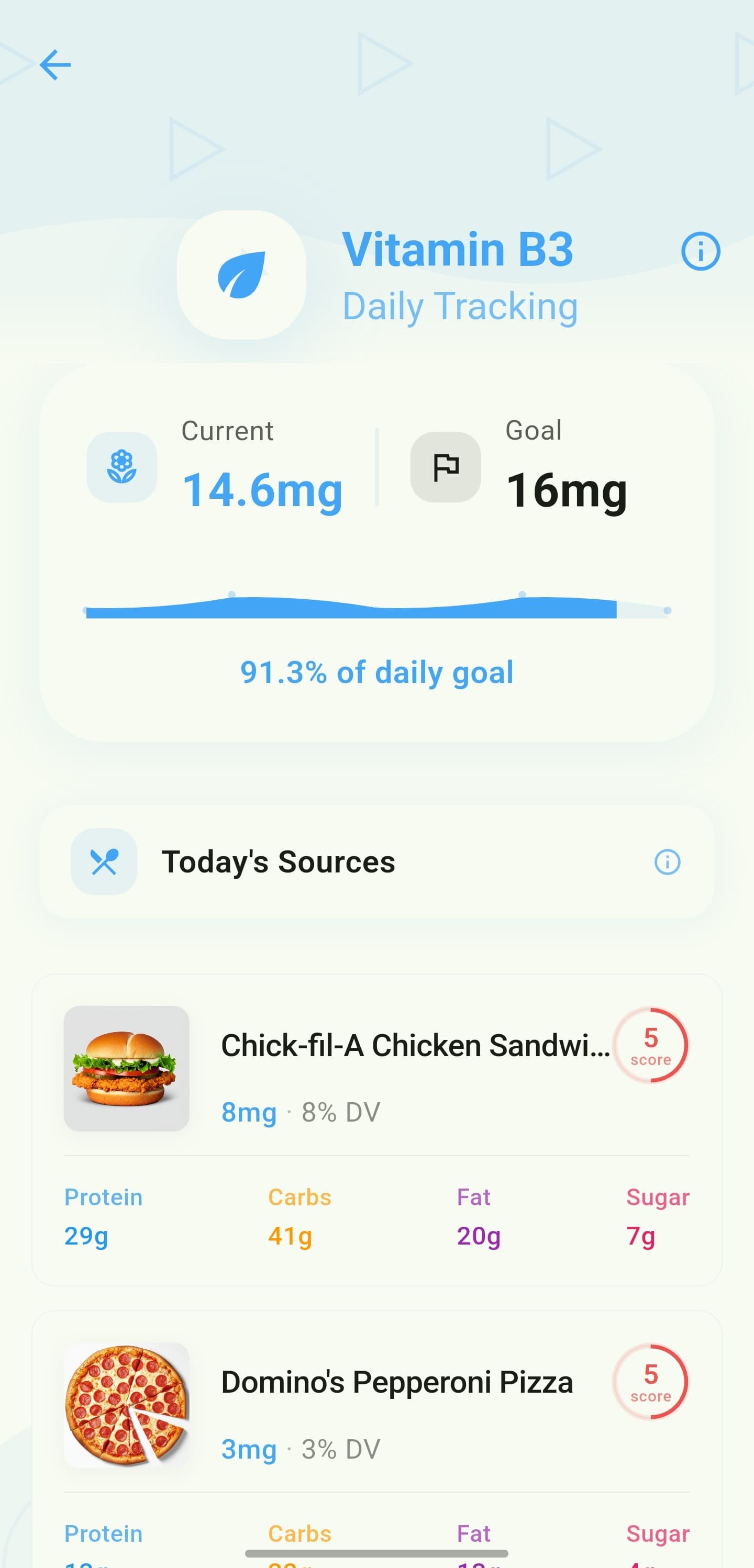
Confirm the updated totals and save. Check the daily dashboard to see the revised contribution.
- 04
Delete when it does not belong
Use the delete action and confirm only when the entire entry should be removed.
What you will see
These screens show the current app layout. Platform-specific labels and controls are noted below.
iOS and Android
iOS
- Edits sync to other signed-in devices after the app reconnects.
Android
- Edits sync to other signed-in devices after the app reconnects.
If something looks wrong
- If an edit does not appear immediately, return to the diary and refresh after reconnecting.
- Deleting a Food Lens entry also follows the photo-retention rules in the Privacy Policy.
Keep learning
Still need a hand?
Tell us which step you reached and what you expected to happen. We will help you find the next move.
Contact support