
Log · Free and premium
Log food with a photo or gallery image
Capture a meal, review the estimate, correct it, and save it to the right time.
Before you start
Food → Add → Camera → Food or Gallery
Have ready
- Camera or photo-library permission
- Internet access for AI analysis
Step by step
Walkthrough
- 01
Choose Food or Gallery
Open the camera from the Food tab. Use Food for a new picture or Gallery for an existing meal image.
- 02
Frame the full meal
Use clear light and keep the plate, toppings, sauces, and visible sides in frame. Capture separate dishes separately when portions are unclear.
- 03
Review the estimate
Check identified foods, portions, preparation, calories, and nutrients. Edit anything that does not match what you ate.
- 04
Choose the time and save
Confirm the entry time and meal placement, then save it to the diary.
What you will see
These screens show the current app layout. Platform-specific labels and controls are noted below.
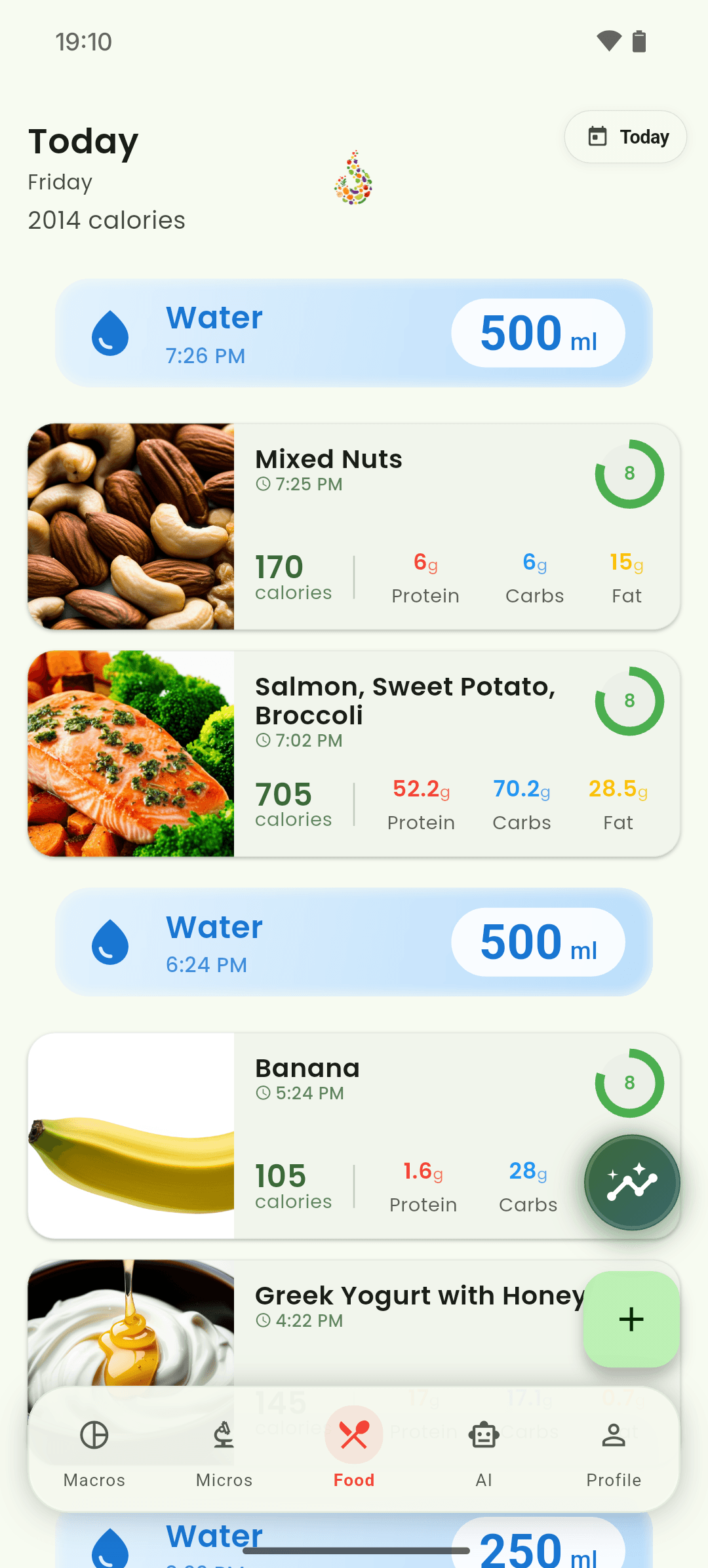
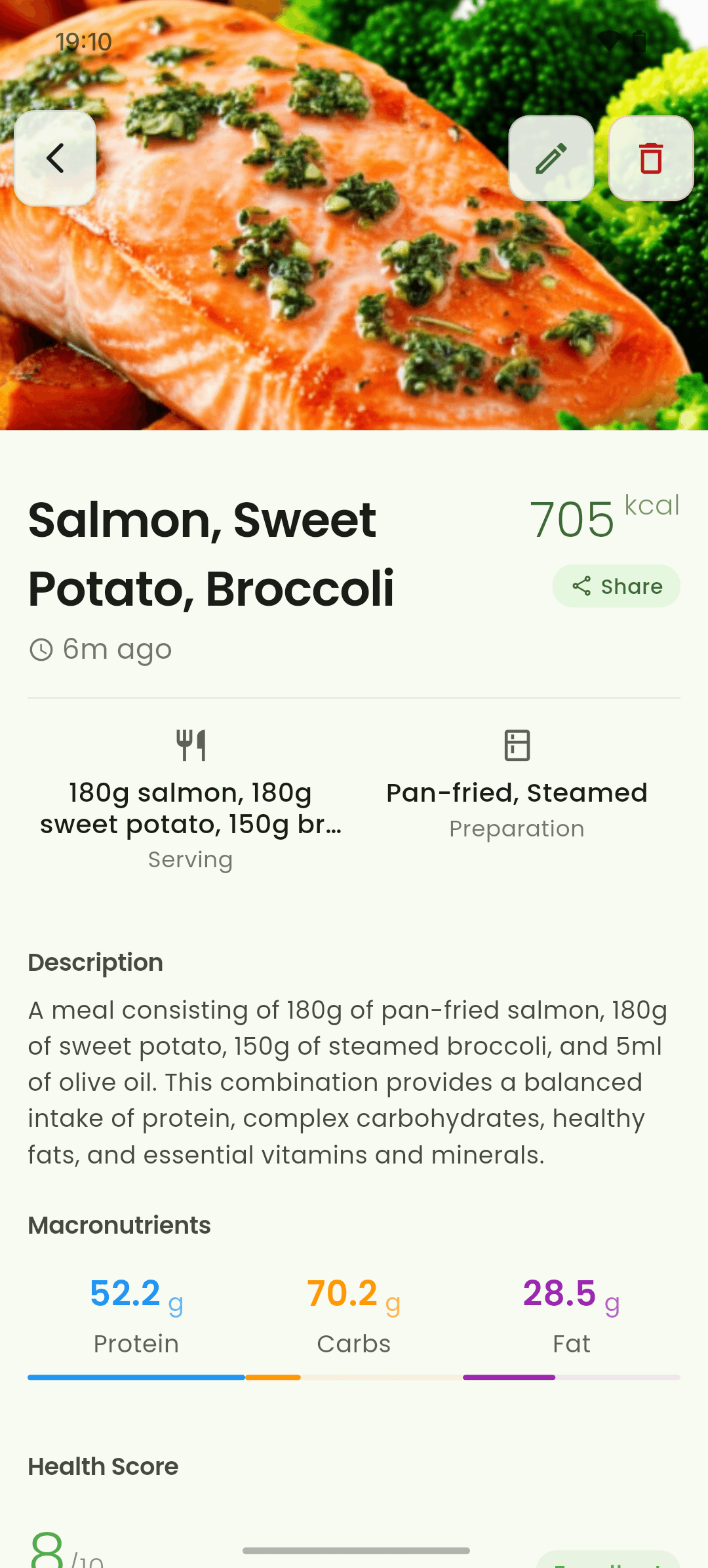
iOS and Android
iOS
- Permission prompts use system controls, so their wording differs slightly by platform.
Android
- Permission prompts use system controls, so their wording differs slightly by platform.
If something looks wrong
- If analysis fails, try a sharper image with the whole meal visible.
- AI portions are estimates; use a measured weight when precision matters.
Keep learning
Still need a hand?
Tell us which step you reached and what you expected to happen. We will help you find the next move.
Contact support