
Log · Free and premium
Use food search, manual entry, and recent foods
Build an entry without AI by searching the database, entering known nutrition, or reusing recent items.
Before you start
Food → Add → Search, Manual, or Recent
Have ready
- Nutrition facts when creating a manual food
Step by step
Walkthrough
- 01
Pick the shortest route
Use Recent for something logged before, Search for a known database food, or Manual when you have the nutrition facts.
- 02
Choose the correct serving
Confirm the product, serving unit, quantity, and brand where available.
- 03
Enter known nutrition carefully
For manual foods, copy calories and nutrients from the label and keep serving size aligned with those values.
- 04
Save to the diary
Choose the correct time and add the item. Open it from the diary if you need to adjust the serving later.
What you will see
These screens show the current app layout. Platform-specific labels and controls are noted below.
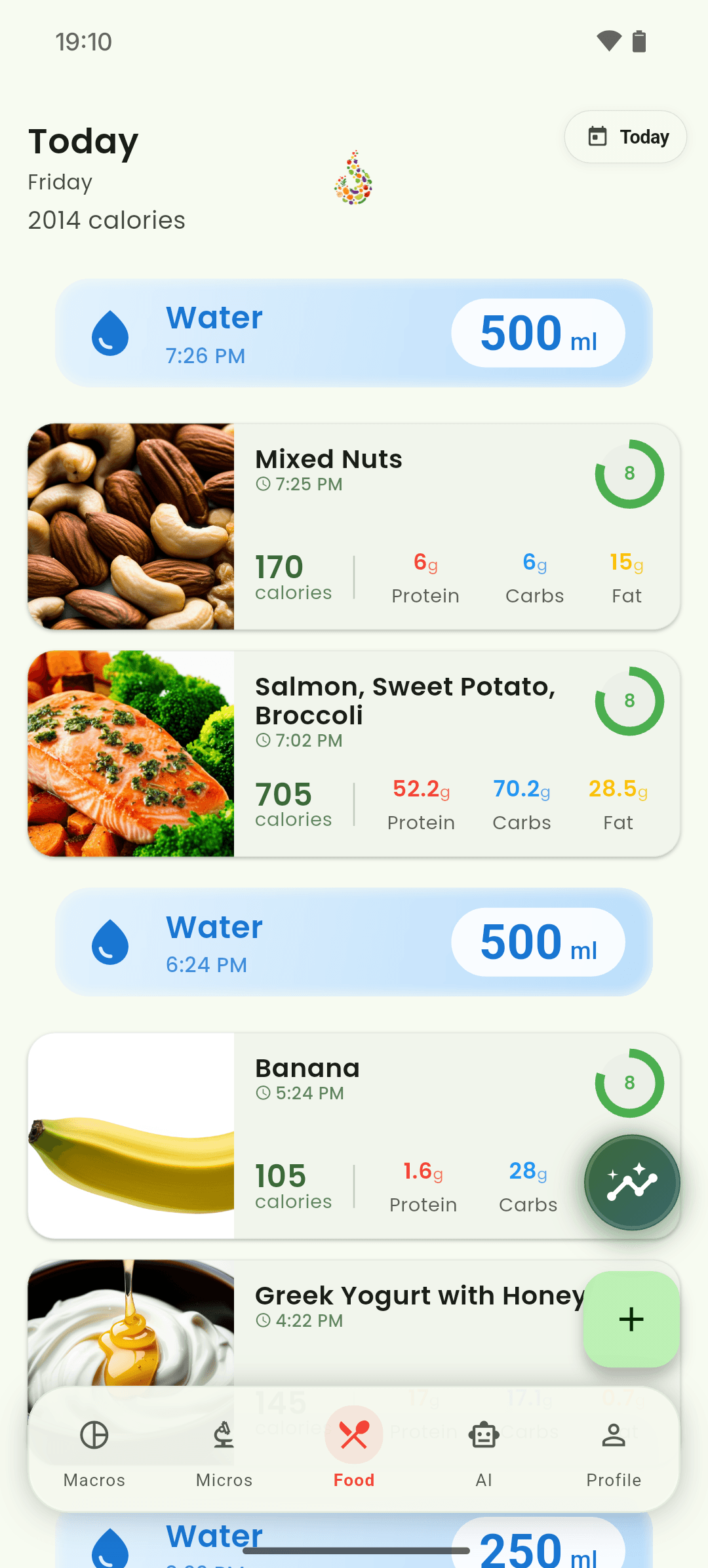
iOS and Android
iOS
- Search results and recent foods are tied to your signed-in account.
Android
- Search results and recent foods are tied to your signed-in account.
If something looks wrong
- Compare packaged-food results with the physical label.
- If search has no match, create a manual entry instead of choosing a different product.
Keep learning
Still need a hand?
Tell us which step you reached and what you expected to happen. We will help you find the next move.
Contact support